Ares Defence Services

Garry’s Mod | Voice Chat Support Guide
Ares Defence Services
Garry’s Mod | Voice Chat Support Guide
This guide assists players by providing step-by-step solutions and clear instructions for fixing microphone issues in Garry’s Mod, from setting your microphone as the default device, enabling beta mode, verifying game files, and even reinstalling the game if needed.
Table of Contents
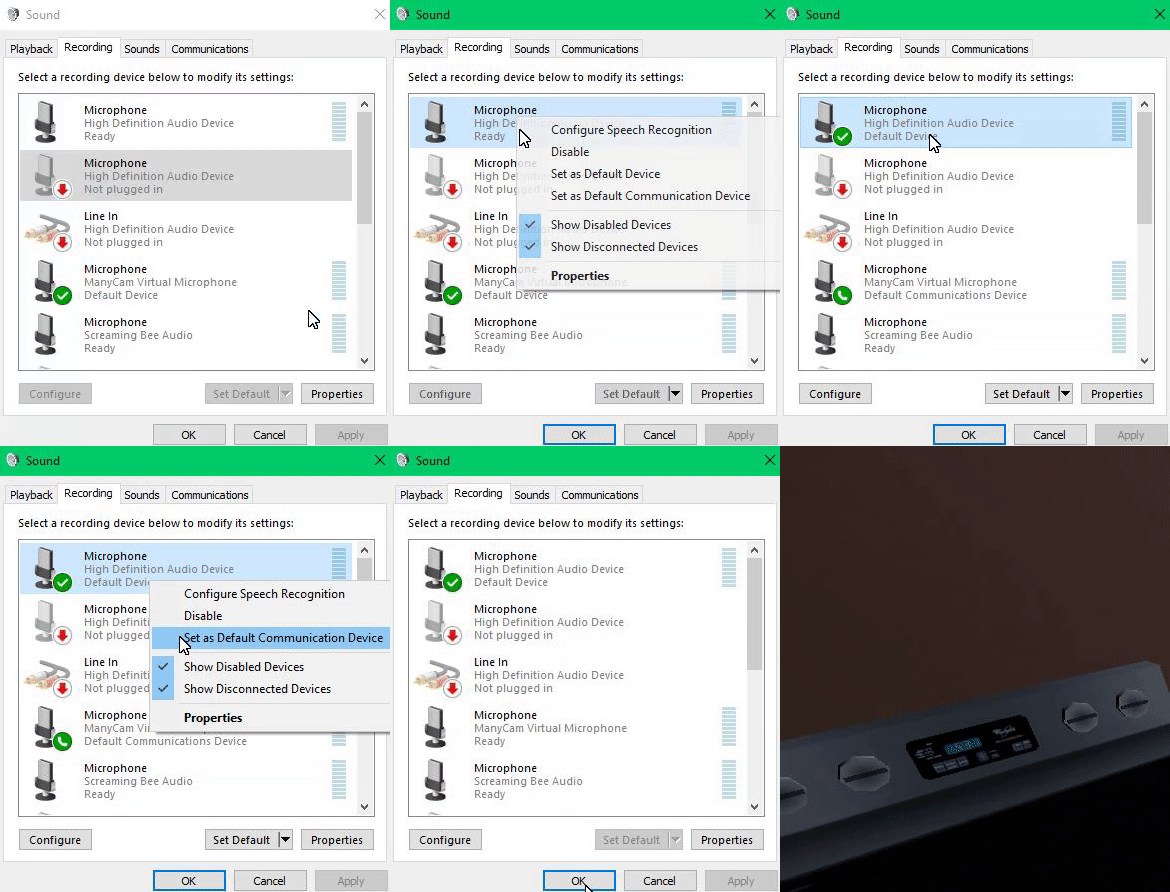
Solution 1: Set Your Microphone as the Default Device 2
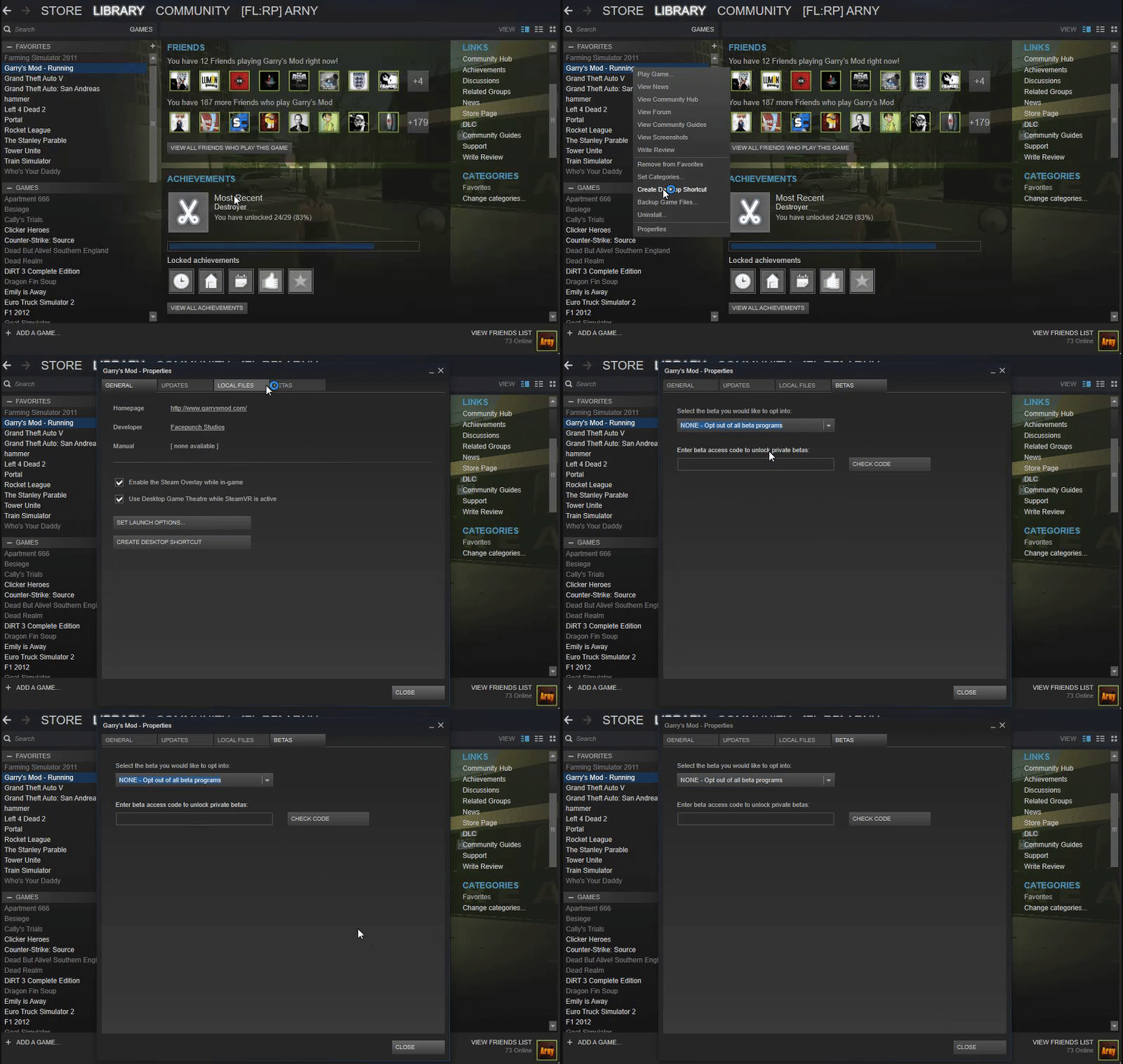
Solution 2: Enable Beta Mode 3
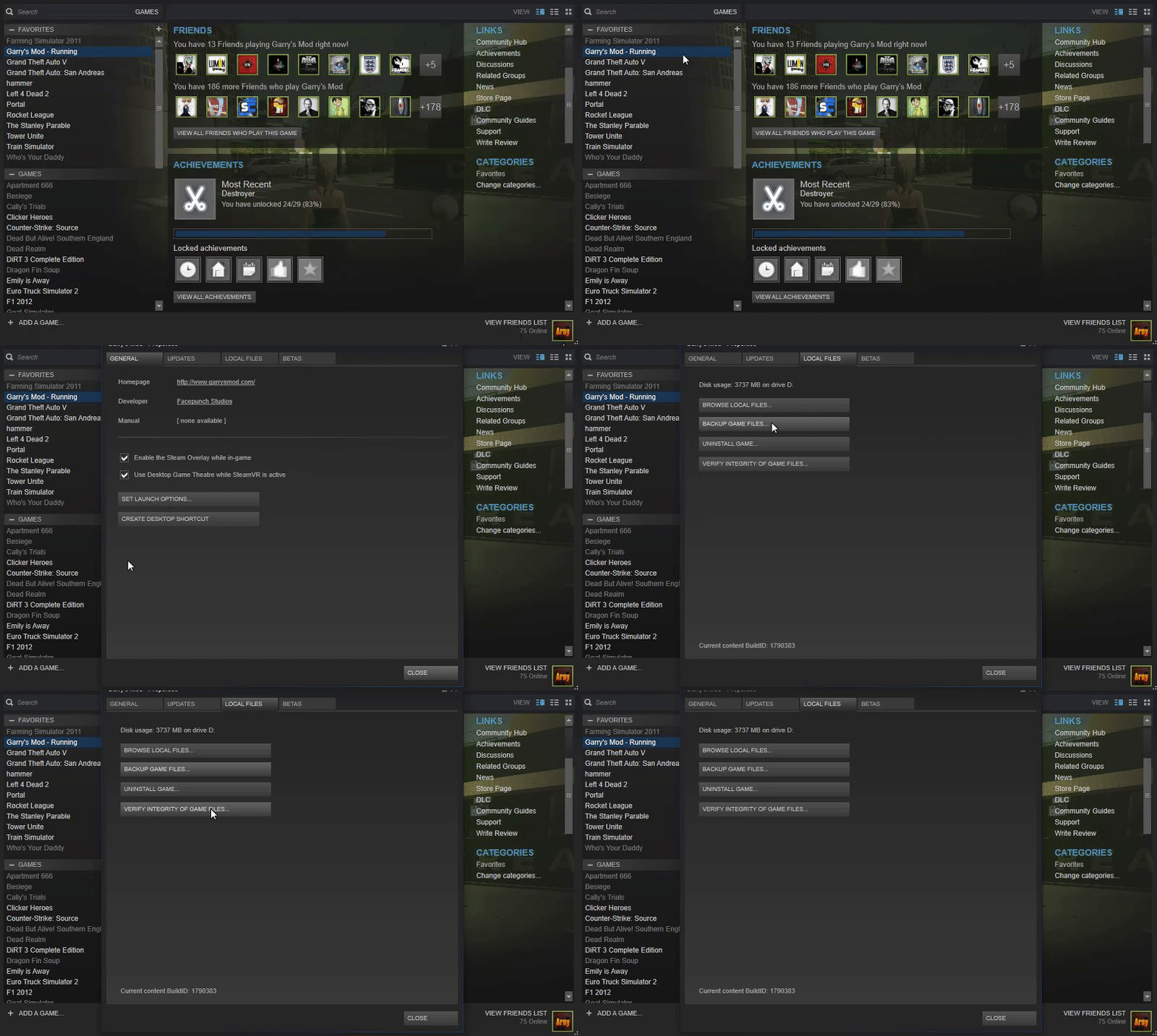
Solution 3: Verify Your Game Files 4
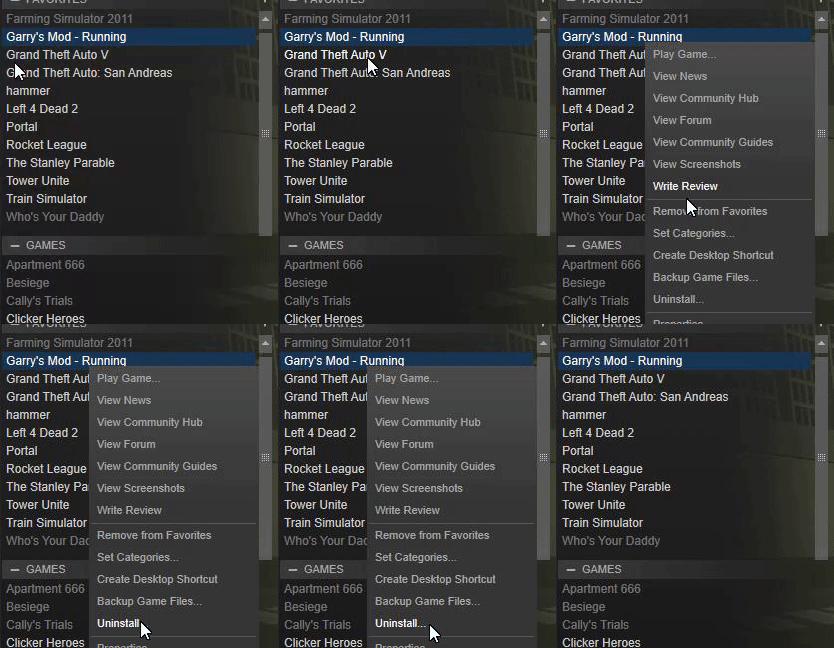
Solution 4: Reinstall Garry’s Mod 5
Set as Default Device and Set as Default Communication Device.
Note: Ignore the “private code” box—it isn’t needed.
Date | Changes | User |
23/08/2025 |
| Dick |